Claude Code can do more than suggest a fix. It can edit files, install dependencies, run tests, and start your application.
But letting it finish a task on its own raises a practical question: how much of your computer should those commands be allowed to affect?
Approving commands one at a time keeps you involved in every step. Removing those prompts lets Claude keep working, but you still need a way to limit its access.
Docker Sandboxes provides that boundary by running Claude inside a lightweight Linux virtual machine, called a microVM, with controlled access to your project and the network.
I wanted to see how useful that freedom would be, and where its limits were. Inside a Docker sandbox, Claude added a health endpoint to my Flask app, wrote a test, built a Docker image, passed all three tests in a container, and checked that the application responded. It finished without asking me to approve a command.
I also tested Docker's two project modes. In direct mode, the sandboxed Claude could change a project folder on my Mac immediately. In clone mode, it worked on a separate copy inside the sandbox, so I could review its changes before applying them to the original project. I then tested which files Claude could read, change, and send over the network.
In this article, you'll learn what Docker Sandboxes isolates, what those tests revealed, and how to run Claude in a sandbox with your own project. You'll choose between direct and clone mode, configure network access, and review Claude's work before using it.
Table of Contents
Prerequisites
To follow the commands in this article, you'll need:
Basic terminal skills and familiarity with Git commits, branches, and diffs. Knowing what Docker images and containers are will help with the application example.
An Apple-silicon Mac running macOS Sonoma 14 or later, with Homebrew and Git installed. These instructions use macOS. Docker documents installation on other supported platforms.
A Docker account, plus a Claude subscription that includes Claude Code or an Anthropic API key. We'll walk through signing in below.
A local project to work on. To use clone mode, it must be a Git repository with an initial commit. The example task uses Flask, but you can give Claude a task suited to your own project.
You don't need Docker Desktop or Docker Engine installed on your Mac. We'll install Docker's sbx command below.
What the Sandbox Isolates
Your computer is the host. The sandbox is a separate Linux environment running on it.
Ordinary Linux containers share the kernel of the Linux system running them. A Docker Sandbox has its own kernel, the part of the operating system that manages processes and hardware access. This separates the sandbox's operating system from the host operating system.
Claude has sudo access inside the sandbox, so Claude can run commands as a Linux administrator. For example, Claude can install software or change system files inside the sandbox.
Those permissions don't make Claude an administrator of your Mac. The folder you choose to share with Claude has its own access rules. (Source: Docker’s isolation documentation)
Docker's Claude integration starts Claude inside the virtual machine with this command by default:
claude --dangerously-skip-permissions
The flag disables Claude's ordinary tool-approval prompts. Docker supplies the isolation and controls access to files and network destinations. You launch this environment from your computer using Docker's sbx command. (Source: Docker’s Claude Code integration documentation)
Docker Sandboxes offers two ways to make your project available to Claude:
| Mode | Where Claude works | What happens to the files on your computer |
|---|---|---|
| Direct mode | The project folder you select on your computer | Claude can read, change, create, and delete files in that folder immediately. |
| Clone mode | A separate copy of your Git project inside the sandbox | Claude can read the original folder, but its edits stay in the sandbox until you retrieve and apply them. |
Claude runs inside a virtual machine in both modes. Direct mode gives that virtual machine permission to change a particular folder on your computer. It doesn't mean Claude runs directly on your Mac.
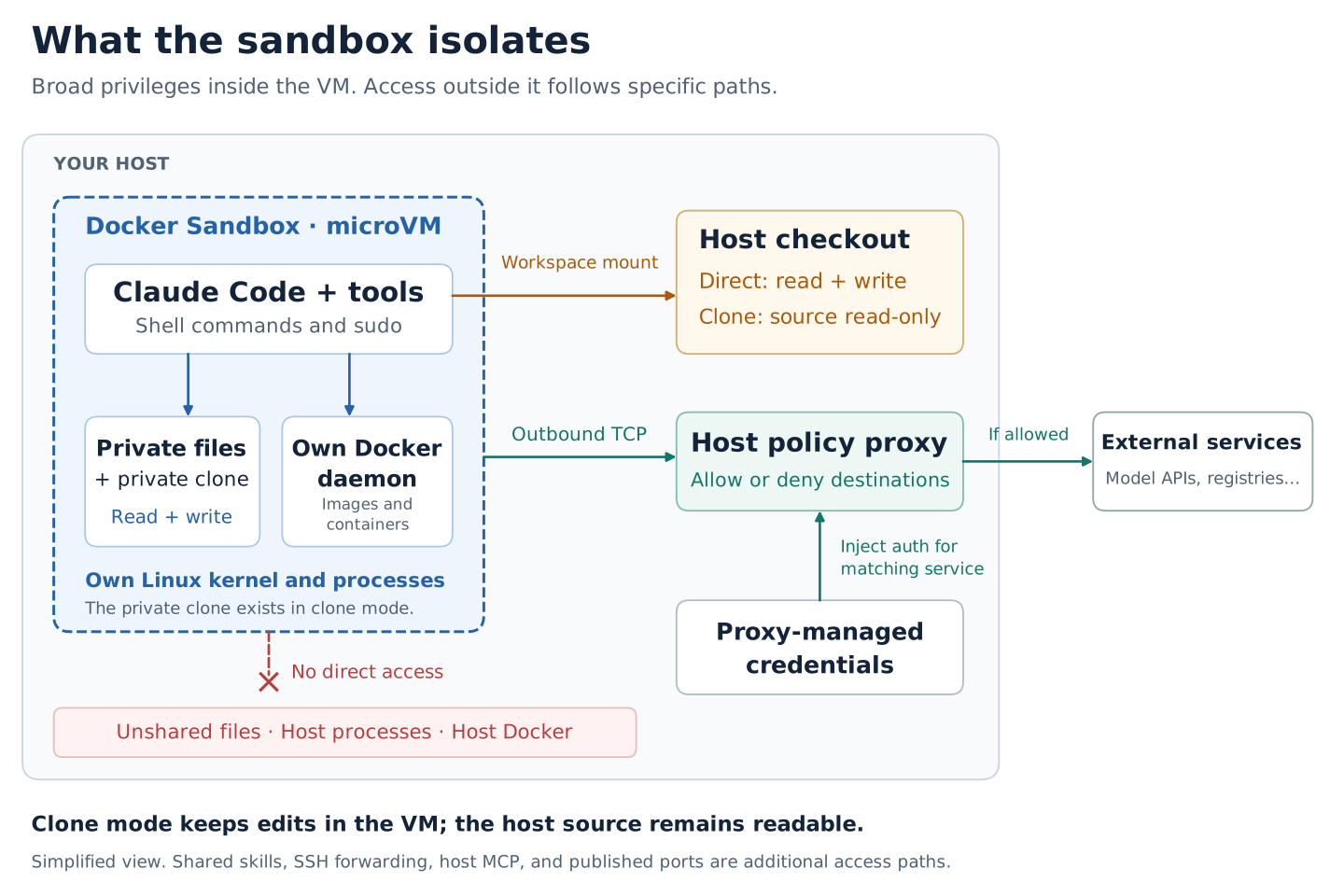
The diagram separates Claude’s working environment from the rest of your computer. Inside the virtual machine, Claude can run shell commands, install software, and create private files. It also has a separate Docker Engine for building images and running containers.
The connection labeled “Workspace mount” makes your project folder available inside the sandbox. “Host checkout” means that project folder on your computer. In direct mode, Claude can read and change those files immediately. In clone mode, Claude can read the original folder but makes its changes in a separate copy inside the virtual machine. You retrieve its commits and review them before applying them to your original project.
The network arrows show another controlled connection. Outgoing requests pass through a proxy on your computer that checks whether the destination is allowed. For credentials managed through that proxy, the proxy adds authentication to requests for the matching service. This lets a request use an API key without storing that key in the sandbox.
The crossed-out connection shows what these permissions don't provide: direct access to unshared files, running processes, or the Docker Engine on your computer. The diagram shows the basic setup. Additional integrations and published application ports create connections that you configure separately.
What the Experiment Showed
In direct mode, I asked Claude to delete a project file and add a Git hook, a script Git can execute during operations such as switching branches. Both changes appeared in the project folder on my Mac immediately. That was the access direct mode was configured to provide.
The hook exposed a review problem: ordinary git diff showed the deleted file but didn't show the new hook. Hooks live in the repository's .git/hooks directory, outside the files Git normally includes in commits. We didn't run the hook.
The lesson is that reviewing a direct-mode session may require inspecting more than the code diff.
In clone mode, Claude deleted a file and committed changes in its private copy. The original project on my Mac stayed unchanged. I could fetch the branch and inspect its diff before applying anything. The private Git hook didn't come with the fetched commit.
Claude also couldn't read a test file I placed in a separate, unshared folder on my Mac. But it could read files inside the project in both modes. When I explicitly allowed a network connection to a test server, Claude could send a readable test value to that server. Protecting files from edits doesn't make their contents secret.
These findings point to a practical choice: use direct mode when you want immediate edits in your editor. Use clone mode when you want to review the work before it changes your project.
The experiment repository contains the detailed procedure and recorded results. You don't need its test files to use the setup below with your own project.
Install Docker Sandboxes and Sign in
I used sbx v0.43.0 on an Apple-silicon Mac. The Mac installation requires macOS Sonoma 14 or later. You don't need Docker Desktop or a Docker Engine installed on your Mac. Run the following commands in your Mac's terminal:
brew trust docker/tap
brew install docker/tap/sbx
sbx login
sbx version
If sbx is already installed, use brew upgrade docker/tap/sbx to update it. The version command tells you which release you have. The experiment's results are for v0.43.0. (For more information, see Docker’s installation instructions.)
sbx login signs you in to Docker. Claude needs separate authentication. If you use an Anthropic API key, store it by running this command on your Mac and entering the key when prompted:
sbx secret set anthropic
If you use a Claude subscription instead, skip that command. After starting Claude inside the sandbox, you'll type /login into Claude's interface.
Don't save your API key in a source file or .env file inside the project you give Claude. Claude can read that folder, including in clone mode. Use the authentication steps above to connect Claude to your account. (For more information, see Docker’s guide to authenticating Claude Code.)
Choose the Network Access Claude Needs
Claude may need internet access to contact its model provider, download dependencies, or retrieve code. Docker's network presets decide which destinations a sandbox may connect to:
| Preset | Starting rules |
|---|---|
| Open | Broad outbound network access |
| Balanced | Common development services are allowed, including model APIs and package registries. Other destinations are denied. |
| Locked Down | No destinations are allowed by the preset itself. You or the agent's Docker configuration must add allowances. |
For a new installation, initialize Balanced from your Mac's terminal:
sbx policy init balanced
This establishes rules used across your sandboxes. If you've already chosen a preset, you can keep it. We'll inspect the rules for your project after creating its sandbox. Docker's agent configuration can add rules, and an organization-managed installation may impose additional restrictions. (For more information, see Docker’s network preset documentation.)
Start Claude in Your Own Project
Open a terminal on your Mac and change to your project's folder. Replace the path below with the location of your project:
cd /path/to/your/project
Choose one of the following commands. Both name the sandbox my-project, so use only the command for the mode you want.
For direct mode, where Claude's edits appear immediately in this folder:
sbx create --name my-project --skills=off claude .
For clone mode, where Claude edits a separate copy inside the sandbox:
sbx create --name my-project --clone --skills=off claude .
Clone mode requires a Git repository. Commit the starting code you want Claude to work from before creating the sandbox. The final . in each command means the project folder your terminal is currently in. --clone selects clone mode. --skills=off prevents this sandbox from using Docker's shared store of agent instructions and scripts.
The name my-project identifies this sandbox. You can later use that name to reopen it from any directory on your Mac. You choose direct or clone mode when creating the sandbox. Reconnecting with a different flag doesn't convert its mode. (For more information, see Docker’s guide to Git workflows.)
Inspect its network rules, then start Claude:
sbx policy ls my-project --wide
sbx run --name my-project
Your terminal now displays Claude Code running inside the sandbox. If you're using a Claude subscription, type /login at Claude's input prompt and follow the sign-in instructions. Enter /login in Claude, not in your Mac's shell.
You can now ask Claude to work on the project. Start with a small change whose result you can check. For a Flask application like the one in my experiment, you could use:
Create a branch named sandbox/health-check. Add GET /health returning
{"status":"ok"}, write a test for it, and run the tests. Commit the changes
on that branch. Do not push to an external remote. Tell me which files
changed and whether the tests passed.
For a different project, replace the endpoint task with your own change. Keep the named branch and request to run tests so you have a specific result to review.
Review the Work Before Using it
In direct mode, inspect your project on your Mac as Claude works. Its file changes are already there. After it finishes, review the changes and inspect .git/hooks as well as the code, because the experiment showed that a normal diff can miss local hooks.
In clone mode, Claude's branch stays inside the sandbox until you retrieve it. Keep the sandbox running and open a second Mac terminal in your original project folder. For the example task above, run:
git fetch sandbox-my-project sandbox/health-check
git diff --stat HEAD FETCH_HEAD
git diff HEAD FETCH_HEAD
Docker creates the Git remote named sandbox-my-project so you can fetch commits from the sandbox. FETCH_HEAD refers to the commit you just downloaded. Fetching doesn't change your working files. Read the diff, then check out or merge the work through your usual Git process. If you chose a different branch name, use it in the fetch command. (For more information, see Docker’s guide to fetching work from a sandbox.)
Clone mode gives you a review step before edits reach your project. It doesn't make the proposed code safe to run automatically. Review changes to build scripts and other executable files along with the application code.
Keep Unrelated Secrets Out of Claude's Reach
Clone mode makes your original project folder readable inside the sandbox. That includes files Git ignores. A .env file containing a database password may therefore be readable even if you never committed it.
Before starting Claude, check the project folder for API keys, database passwords, and other credentials the task doesn't need. Move those files outside the folder you give to the sandbox. .gitignore controls which files Git ignores. It doesn't prevent Claude from reading them. (Source: Docker’s documentation on file access in clone mode)
Network rules are the other part of this decision. In my test, Docker blocked a request to example.com, but allowed a request to a server I had explicitly permitted. That allowed request carried data read from the project. A destination rule controls where Claude connects, not which contents it sends.
To block a particular destination for your sandbox, run these commands on your Mac:
sbx policy deny network --sandbox my-project example.com
sbx policy check network --sandbox my-project example.com
Replace example.com with the destination you want to block. Use sbx policy log to inspect connection decisions when a download or request fails. (For more information, see Docker’s guide to configuring network access.)
Run the Application and Open it in Your Browser
Claude can build images and run containers using the Docker Engine inside its sandbox. This is separate from Docker on your Mac.
In my experiment, the application container appeared in the sandbox's Docker listing and not in the Mac's Docker listing while it was running. This lets Claude use Docker for development without giving it control of the containers you run on your Mac. (Source: Docker’s documentation on Docker Engine isolation)
To view a web application, ask Claude to start it inside the sandbox, listen on 0.0.0.0:8000, and leave it running. Then run this on your Mac:
sbx ports my-project --publish 8080:8000
open http://localhost:8080
This connects port 8080 on your Mac to port 8000 in the sandbox. If the app runs in a Docker container inside the sandbox, ask Claude to publish the container's app port to port 8000 in the sandbox first.
There are two connections to make: from the container to the sandbox, then from the sandbox to your Mac. (For more information, see Docker’s guide to accessing applications running inside a sandbox.)
Stop the Sandbox Without Losing Your Work
Exiting Claude doesn't delete the sandbox. Its files, installed software, and Docker state survive stopping and restarting it. To stop it, run this on your Mac:
sbx stop my-project
To reopen the same environment later:
sbx run --name my-project
When you no longer need the environment, remove it:
sbx rm my-project
Removal deletes the sandbox's private contents. Fetch any clone-mode branch you want to keep before removing the sandbox. In direct mode, changes already made to your project folder remain on your Mac. Removing the sandbox doesn't undo them. (For more information, see Docker’s guide to managing sandboxes.)
Conclusion
The experiment showed that Claude could carry a development task through editing, testing, and running the application without asking me to approve every command. Docker Sandboxes provided a separate environment for that work, while the project mode and network rules determined what Claude could access.
The main choice is when you want Claude’s edits to reach your project. Direct mode makes them visible immediately. Clone mode gives you a chance to review committed changes before applying them. Neither choice makes credentials in readable project files private.
You now have the steps to start Claude in a sandbox, choose its access, run your application, and retrieve its work. For unattended tasks, I would use clone mode, remove unnecessary credentials from the project folder, and review the changes and test results before applying them.